What It Is
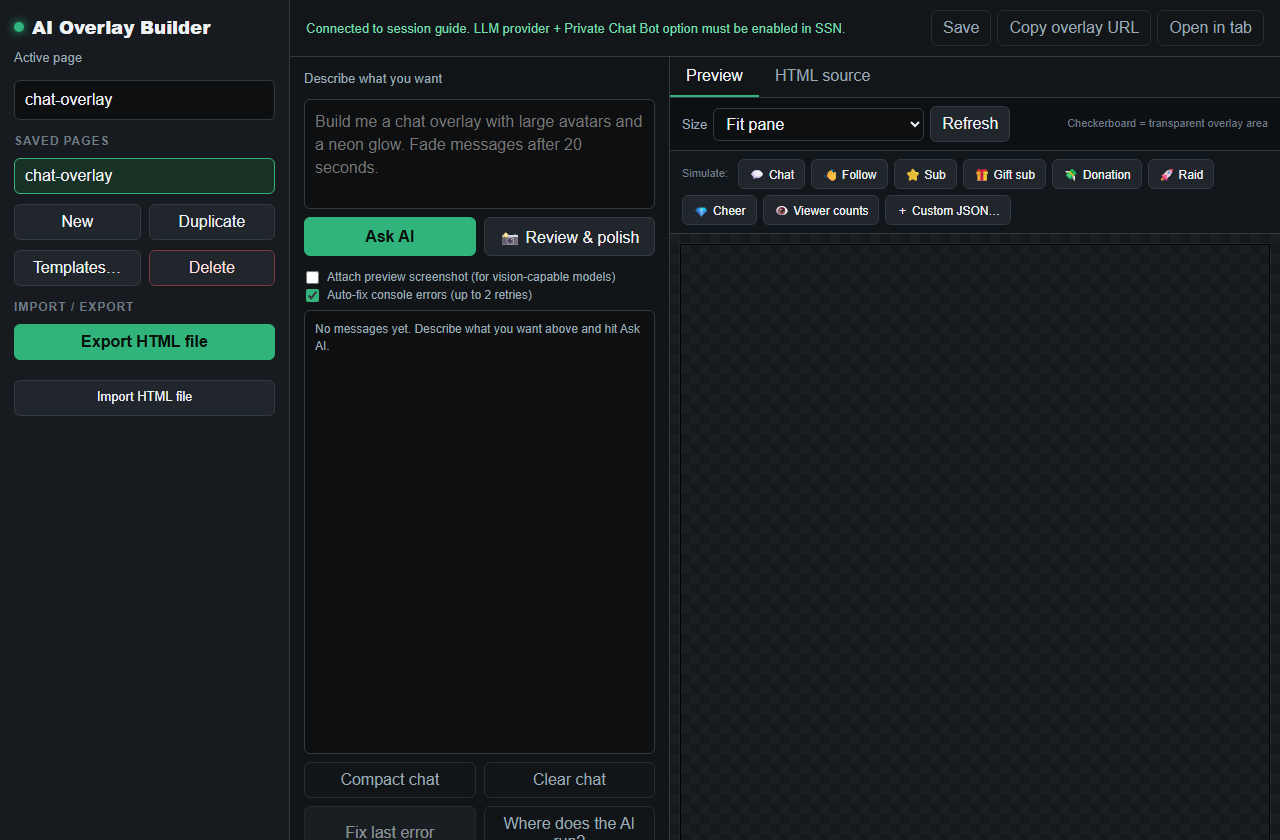
The AI Overlay Builder helps create HTML overlays from a prompt. It is not the OBS page by itself. Use aiprompt.html to build and preview, then use aioverlay.html for the output page.
1. Build In The Prompt Page
- Open
aiprompt.html?session=YOUR_SESSION. - Describe what the overlay should do and how it should look.
- Use a focused prompt: layout, message behavior, colors, animation timing, and what event types matter.
- Click the preview controls and simulate chat, follow, sub, gift, raid, donation, and custom JSON events.
- Save the overlay with a clear page name.
2. Add The Output Page To OBS
After saving, add the output page as an OBS Browser Source. Keep the same session and saved page name.
https://socialstream.ninja/aioverlay.html?session=YOUR_SESSION&overlay=chat-overlay
If the overlay is transparent or only appears during events, use the builder's simulation buttons first so you know it can render.
3. Use Templates When You Need Faster Setup
If you want something reliable quickly, start from a template and customize it. Use the AI builder when you want something more specific.
Common Fixes
- Blank preview: click a simulation button and check the console panel.
- OBS blank: confirm the saved page name and session match the builder.
- Wrong event behavior: test with the exact event type you expect, not only normal chat.
- Generated code is broken: use Review & polish or simplify the prompt.
- Overlay works in builder but not OBS: open the same
aioverlay.htmlURL in a normal browser first.