Platform Setup Picker

Choose the simplest capture path before opening OBS.

Start With The Supported Sites Page

Search for your platform first. Click it and read the short setup note before trying a harder method.
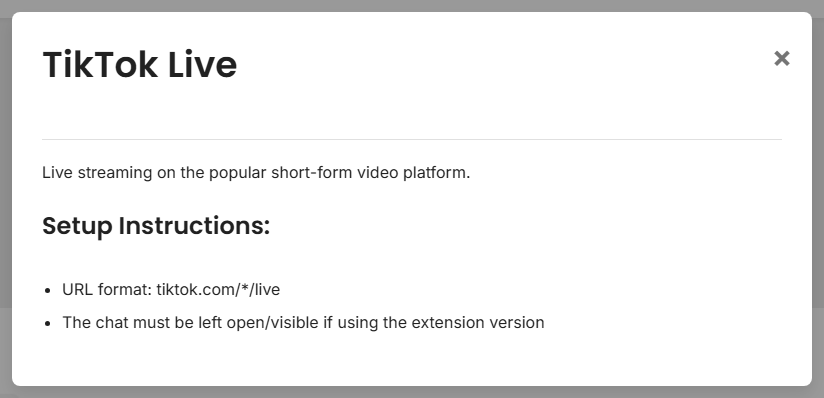
Supported Sites setup popup for TikTok Live showing the URL format and visible chat note
Each platform note tells you the simplest thing to open, such as a normal live page, popout chat, or source page.

Use The Normal Browser Extension When

  • The platform works in your normal browser.
  • You already have the right account signed in.
  • The supported-sites page says to open the site or pop out chat.

Start here for YouTube, Twitch, Facebook, Discord, Slack, WhatsApp, and most browser-based sources.

Use A Popout Or Chat-Only Window When

  • The platform has a separate popout chat URL.
  • The normal stream page is heavy or unreliable.
  • You want a smaller window that only shows chat.

Check exact platform notes on the Supported Sites page.

Use The Desktop App When

  • Browser tabs are being hidden, throttled, or discarded.
  • You want source windows managed inside the app.
  • You are using an app-specific integration, such as some TikTok modes.

Desktop setup: Standalone App Guide.

Use A Source Page When

  • The platform needs a dedicated Social Stream source URL.
  • The setup asks for a channel, room, token, or sign-in step.
  • The platform is not captured from a normal browser tab.

Source pages are normal. They just mean Social Stream needs a special page for that platform.

Quick Decision

SituationUse
Standard supported chat siteBrowser extension
Site says pop out chatPopout/chat-only window
Hidden browser tab stops updatingDesktop app
Setup asks for room/channel/tokenSource page
Custom automation or incoming dataCommands/API or custom source

When in doubt, start with the easiest matching row. You can switch methods later.